
Questions concerning use of the survey and application platform
-
Login and user interface
-
Login to the EHP takes place via the FINMA portal. Access to the EHP is activated following successful login to the FINMA portal.
After logging in, users arrive at their personal homepage. The institution for which the user is authorised is shown immediately next to their user name. Users authorised for multiple institutions can switch between the individual institutions using drop-downs.

Depending on the permissions, the main menu on the left-hand side will contain the following entries:- Surveys
- Submissions
- Administration (only for authorisation coordinators (ACs))
The practical quick filters facilitate an overview of the different EHP dossiers and their statuses for surveys and submissions.
A specific EHP dossier can be searched for in the tables using filters or the selection narrowed down accordingly.

Logging in to the EHP via the FINMA portal
In order to use the EHP as a registered user, you first have to log in to the FINMA portal. A link to the FINMA portal can be found on the homepage of the , right at the top in the header. After logging into the FINMA portal, click on the EHP icon. The authorisation coordinator (AC) and all other users registered on the EHP can log into the EHP.

After entering their user name and password, the user receives a code (mTAN) sent by text message to the mobile number stored in their profile. This code serves as an additional security feature (two-factor authentication) and must be entered in the corresponding field.

The EHP application will then be available to the registered users.

Important:
Access to the FINMA portal is blocked after six failed login attempts. Users can have the block lifted again by clicking the “Unblock” button (see illustration below). They will receive a new mTAN code on their registered mobile number for this.

Should they forget their password, users can reset this at portal login by selecting the option “Forgotten password”.
What should I do if I don’t receive an mTAN code by text message?
Each user has to log into the FINMA portal with their personal email address and password. They then receive a code sent by text message as an additional security feature. Should this code not appear, a new one can be requested (see illustration below).
Should no code appear after the renewed request, please contact FINMA at digital@finma.ch.


-
Authorisation management
-
The authorisation coordinator (AC) can manage the institution’s users under the “Administration” menu item.
The ACs are responsible among other things for assigning to the institution’s users the manager, employee and lead auditor roles (the latter only in the case of audit firms). These roles are required for processing and submitting surveys and submissions on the EHP. A detailed description of the roles and their authorisations can be found under “Roles and authorisations”.What are authorisation coordinators (ACs)?
ACs are the administrators of the survey and application platform (EHP) for an institution or organisation. The ACs are responsible on the one hand for ensuring electronic accessibility (for instance during holiday absences) in order to guarantee the continuation of FINMA’s digital surveys. At the same time, the ACs must assign and administer the roles and associated rights of users at their institution. Detailed information about the ACs and roles within the EHP can be found under “Roles and authorisations.
I am the mandated lawyer of an institution. Can I register on the EHP as the authorisation coordinator (AC) of the institution, e.g. as part of a licensing procedure?
Mandated persons may register as ACs for the EHP with the institution’s consent. They will then be assigned all rights and duties of an AC for the corresponding institution and will therefore be able to view all of the institution’s data which is maintained and managed via the EHP. Registration and any deletion of a mandated person as an AC are carried out using the corresponding form on the FINMA website.
How can I report a change of authorisation coordinator (AC) or an additional AC?
Changes, new registrations and deletions of ACs can be reported using the corresponding form on the FINMA website.
Why have I not received any email confirming my registration as an AC?
FINMA sends the institution or organisation a physical confirmation letter containing a deadline following submission of the completed AC data entry form. An email is normally sent to the new AC with an invitation to register within 24 hours following expiry of this deadline. If this email does not arrive, the following must be clarified:
- Check your spam folder. If you find the invitation to register there, please complete registration.
- Should you also not find any email from portaladmin@finma.ch in your spam folder, please contact FINMA at digital@finma.ch. FINMA reserves the right to contact the AC by telephone. The AC to be registered must then supply proof of identification with the identification number contained in the confirmation letter and other features.
I have been assigned a user role in the EHP by an AC of my institution or organisation. Why have I not received any email confirming my registration?
As soon as an AC enters a new user in the EHP, this person receives an email with an invitation to register within 24 hours. Please contact your AC if you do not receive this email on time. He or she will proceed to act on your behalf in accordance with the model described under the previous point.
-
Surveys and submissions in the EHP
-
Where within the EHP can I see whether a new survey has been published?
New surveys will be shown in the EHP under the “Surveys” menu item. The ACs also receive notification by email if a survey has been published that is relevant to their institution or organisation.
Why am I unable to open the attachments after downloading them?
Some attachments (in particular attachments B1 to B3) comprise dynamic PDFs. Some web browsers are unable to display these PDFs. Please use the correct forms applicable to your case. These are available in the EHP:

If the error message “Please wait” appears when opening the forms, you will have to open the forms in Explorer mode:
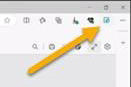
If this is not possible, the document can also be downloaded locally and correctly displayed by right-clicking on “Open with” and selecting Adobe Acrobat. The forms must be completed by computer and subsequently signed by hand.
I can see the survey in the EHP, but I can’t open it. What should I do?
For a survey to be processed and submitted, the AC must first allocate it to a person with the role of manager. If the survey has not yet been allocated to a manager, it cannot be opened. Allocation takes place using the button highlighted in the illustration.

The AC cannot allocate any persons to a survey in the EHP. Why are no users shown for selection?
The AC must enter all internal and external users of the EHP in the “Administration” menu item prior to allocation to a survey. Only then can a survey can be allocated to a person entered. The AC can enter new users at any time and assign them roles. The survey must be allocated to at least one person with the role of manager. Further managers or employees can also be authorised for the survey.
How should I proceed if a survey is mistakenly delivered to me or I do not receive a survey intended for me?
If a survey is not delivered to you or you receive a survey that is not intended for you, please report this to digital@finma.ch. You will receive a response from our support team within a reasonable period.
What does the “validated” status next to the form mean?
The status “validated” means that the EHP is unable to find any further validation errors in a form, such as empty mandatory fields. All forms must have the validated status so that a submission can be submitted. At the level of the survey, the status “validated” means that the survey has been validated by the manager. Changes can still be made to the form thereafter.
Important: the status “validated” does not mean that the survey or submission has already been reviewed by FINMA. The review by FINMA only takes place following submission.
What types of submission are there on the EHP?
Typical types of submission to FINMA are initial approval or change applications, as well as applications concerning the end of supervision, reports under supervisory law, enquiries or notices.
Why can’t I see a particular template in the EHP?
Check that the business case for the template can actually be submitted via the EHP and whether you have selected the correct data in the input mask (institution / product and authorisation). If all of these conditions are met and you still cannot see the template, please contact digital@finma.ch. You will receive a response from our support team within a reasonable period.
Why am I able to select a template but not get any further in the process?
Please check that the zoom function in your browser is set to 100%. If the zoom size is above 100%, it is possible that the “Next” button may not appear.
Why can’t I see a submission?
There are several possible causes if you are unable to see a particular submission in the overview.
- You are entered as an external user at an institution and not authorised for the submission in question.
- The submission is confidential and therefore only visible to the creator and persons authorised to view it.
- Managers and employees require regular certification by the AC. If such certification is forgotten or carried out too late, all authorisations pertaining to a submission are removed. Please contact your AC to enable the authorisations to be reinstated.
If none of these reasons apply, please contact digital@finma.ch. You will receive a response from our support team within a reasonable period.
How can I tell whether a submission has been transferred correctly?
As soon as a submission has been transferred correctly, the status of the submission changes to “Checking by FINMA” or “Submitted to FINMA” or “Submitted and completed”. As long as the submission still has the “Being processed” or “Checking by AF/SO” status, it has not yet been transferred to FINMA.
How can I submit a submission to FINMA?
The submission can be submitted to FINMA by clicking the “Submit” button within the submission.

Why can’t I see the “Submit” button?
Only the manager of the submission and their deputy can submit a submission. Both permissions are initially granted by the creator during creation of the submission. By clicking on the “Permissions” button, the AC and current managers can re-allocate the permissions within the submission at any time. Only internal or external users previously entered by the AC in the “Administration” menu item can be allocated to a submission. The manager and the deputy are visible in the submission at all times:
Why can’t I submit a submission?
The form says “not validated”
As soon as the form contains no further validation errors (e.g. empty mandatory fields), the status of the form changes to “validated”. All forms must have the validated status so that the submission can be submitted. Open the form and go through all of the steps using the navigation (left). All mandatory fields (marked with an asterisk *) must be completed. At the end click “Check submission and save” and “Close” in order to close the form.
No categories are allocated to the attachments
It is mandatory for certain submissions to allocate a category to the attachments. Should an error message appear upon submission suggesting that specific attachments might be missing despite the fact that they have already been uploaded, please check whether all attachments have been assigned a suitable category.

Why is an error message repeatedly displayed when I click “Check submission” despite the fact that I have filled in all the fields correctly?
Please report the error message, together with a screenshot and a description of the business case and submission ID, to digital@finma.ch. You will receive a response from our support team within a reasonable period.
I have incorrectly submitted a submission. How can I withdraw it again?
As manager or deputy, you can delete the submission in question. If the submission has already been submitted, these persons can withdraw the submission. Important: withdrawn submissions can no longer be edited. If the submission has been transmitted to FINMA mistakenly or too soon, please report this to digital@finma.ch or, if known, the responsible FINMA Account Manager.